How to use
How to buy and renew RUC online with myRUC
2 min read
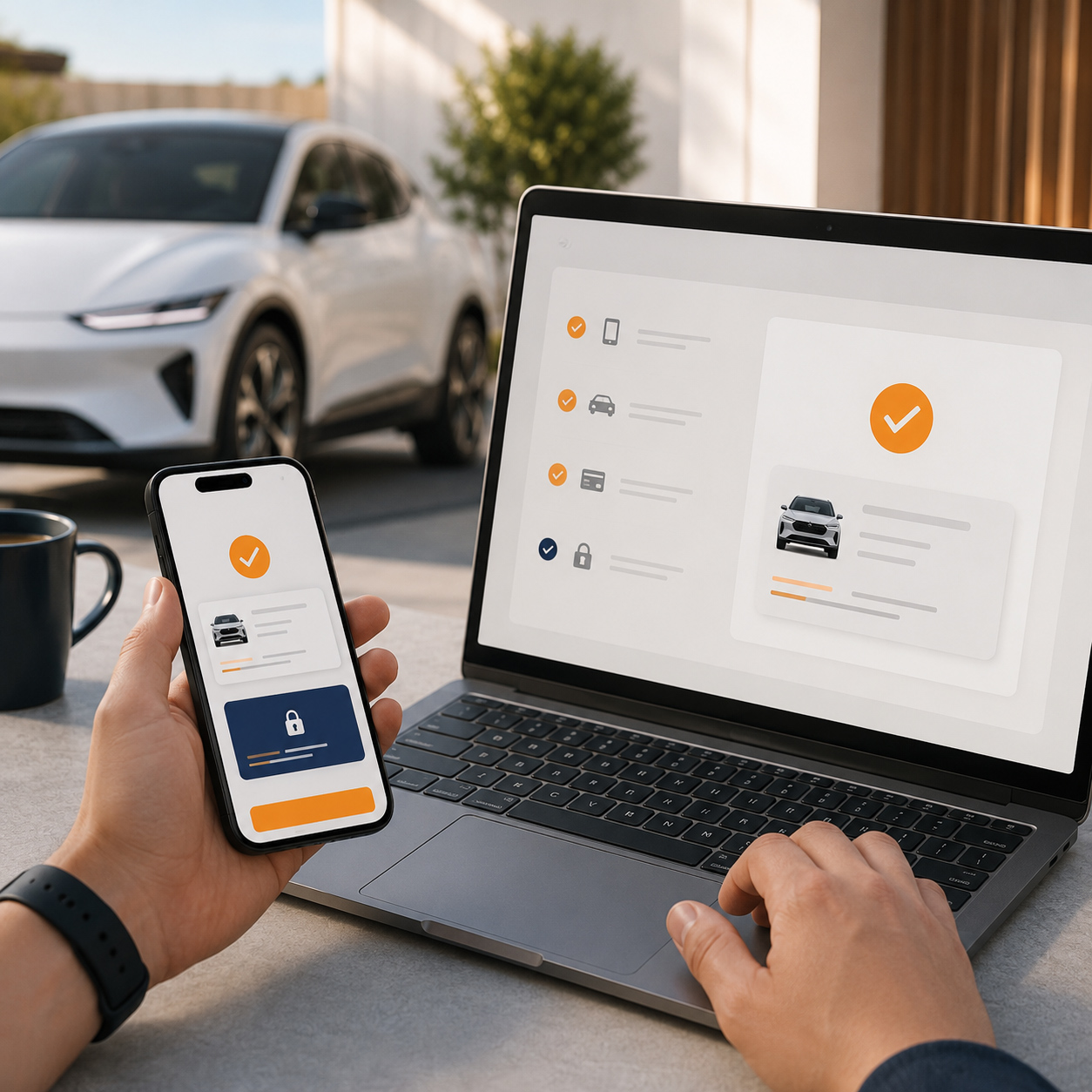
Buying RUC online should feel like a routine vehicle task. With myRUC, the main steps can be completed through a connected app workflow, with the new licence information sent to the vehicle display.
Before you begin
Make sure your vehicle has been added to your myRUC account and that its details match the registration information. You will also need an accurate current distance reading and a valid payment method.
- Confirm the registration and vehicle details.
- Check the current odometer or approved distance source.
- Review the remaining licensed distance.
- Choose the distance you want to purchase.
Purchase the new licence
Open the vehicle in myRUC, review the licence information, and follow the purchase steps. Check the distance and licence details carefully before confirming payment.
Once the transaction is complete, the licence is recorded against the vehicle. The connected workflow reduces the need to handle a printed paper label and gives you a clearer digital record of the purchase.
Transfer the licence to the display
Follow the in-app prompt to transfer the updated licence information to the in-vehicle display. Keep the phone and display within range while the update completes, then confirm that the correct licence is visible.
If you manage multiple vehicles, use the dashboard to check that each transaction has reached the intended vehicle. This final confirmation is a small step that helps prevent avoidable compliance issues.

Still need a hand?
Talk to the myRUC team
Ask us about your vehicle, fleet setup, RUC renewals, or connecting myRUC to your existing systems.